Documentation
Welcome to the official documentation for WordSearchZ, the #1 Word Search Puzzle Generator Software. This guide is designed to help you quickly get started, allowing you to transition from raw word lists to professional, book-ready word search puzzles in seconds.
Triple Canvas System
WordSearchZ renders every project on three separate, independent workspaces, switchable via the canvas tabs at the top of the right-hand panel:
🔠 Puzzle Canvas
The clean letter grid.
🔑 Solution Canvas
The answer key with words highlighted.
📝 Word List Canvas
The word bank on its own page.
Each canvas exports as an independent, high-resolution file — making layouts in Canva, InDesign, Affinity, or Word drastically cleaner. The puzzle grid always stays clean; the solution style you pick is only ever applied to the Solution canvas and the exported answer key.
Multilingual Support 9 Languages
WordSearchZ is fully localized into nine languages — the entire interface translates, and puzzles can be built in each language's native alphabet, including right-to-left scripts.

English

German

Russian

Portuguese

Hindi

Spanish

Arabic
Arabic script · RTL

French

Urdu
Nastaliq · RTL
Interface Language
Translates the entire app — menus, tabs, labels, tooltips and dialogs. Right-to-left languages (Arabic & Urdu) flip the whole layout automatically. Set it in Settings → Interface Language.
Puzzle Language
Sets the alphabet used to fill the grid — Latin, Cyrillic, Devanagari or Arabic (with correct RTL handling). It chooses the letters; it does not translate your words, so type your word list in the language you've selected.
Fonts included: bundled Noto fonts cover Devanagari (Hindi), Arabic, and Urdu (Nastaliq) so complex scripts render correctly out of the box — no manual font hunting. Each language's flag appears right in the picker so it's easy to find.
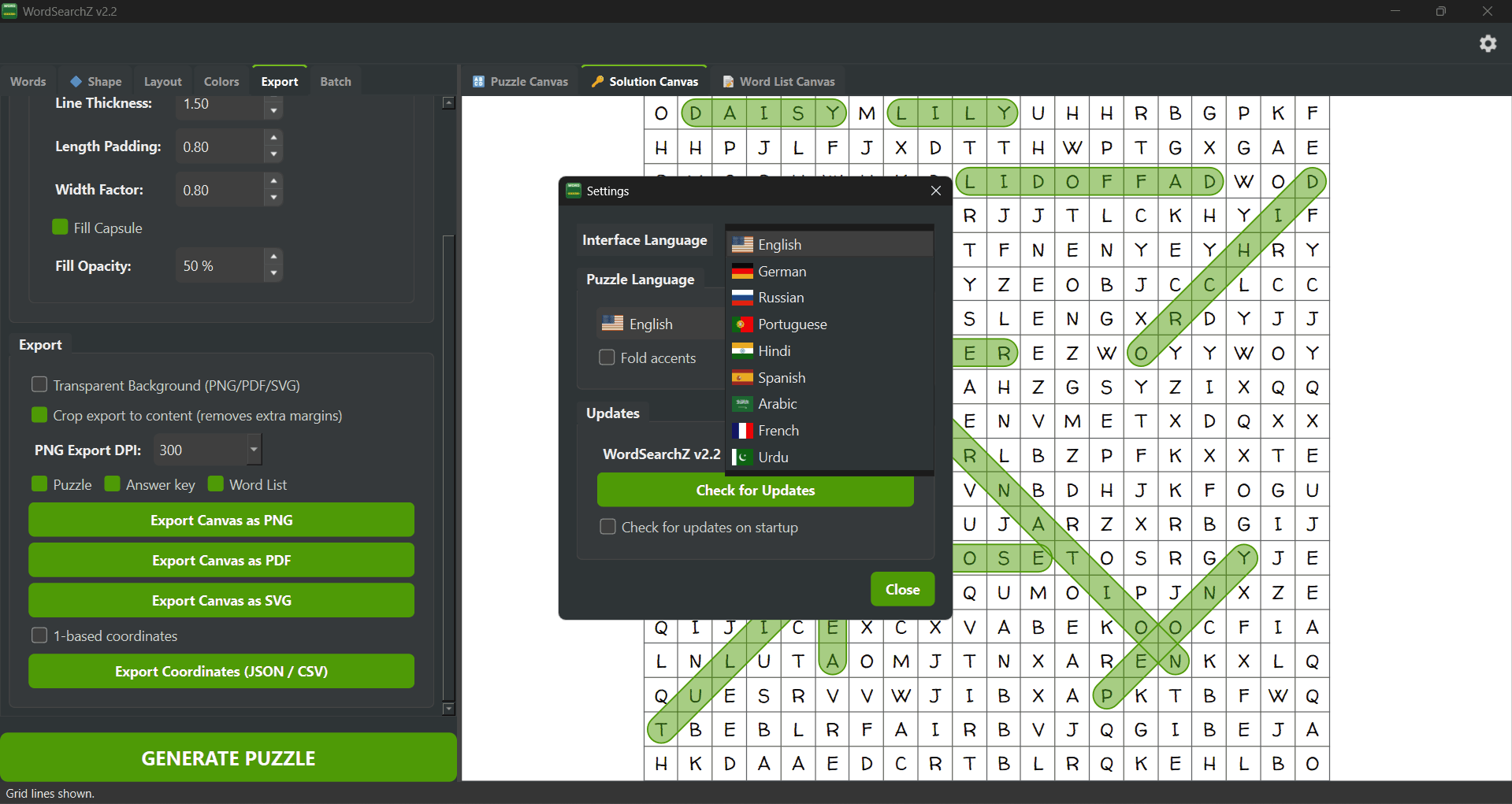
Interface Preview: Language Selection
Installation & Setup
Windows (10/11)
Run the .exe installer with Administrative privileges. If SmartScreen appears, select "More Info" and "Run Anyway."
- • 64-bit Windows 10 or 11
- • See System Requirements
Linux Distributions
We provide a standalone AppImage. Ensure the binary has execution permissions via terminal:
chmod +x WordSearchZ
1. Words Tab
Preset Management
Manage your vocabulary themes using the JSON preset system. Load existing lists, save new presets, or import .csv or .txt files directly. Words should be 1 word per line Example Use the format shown in the science.txt for all batch and word list imports. Each file will represent 1 word search puzzle.
All-in-one tab
The Words tab now also holds every Word List styling control (title, columns, alignment, typography & dividers) — see Word List Styling. Because the word bank has its own canvas, large lists are never limited by puzzle height.
Placement Vectors
- Horizontal & Vertical
- Diagonals (Up/Down)
- Reversed Words (Backward)

Interface Preview: Words Tab
2. Shape Puzzles v2.0
WordSearchZ v2.0 introduces Shape Puzzles — the ability to constrain the entire puzzle grid to any custom boundary. Instead of a plain rectangle, your letters fill a star, heart, circle, or even a silhouette traced from your own uploaded image.
How Shape Puzzles Work
A shape mask is a hidden grid of the same dimensions as your puzzle. Each cell is marked active (inside the shape) or inactive (outside). Letters and word placements are restricted to active cells only. Inactive cells are rendered blank, producing the visual silhouette. The mask is generated automatically from the shape you choose — no manual drawing required.
Built-in Shapes
Seven shapes are available as one-click buttons at the top of the Shape tab. The active selection is highlighted in green.
None
Standard full-rectangle grid. No masking applied. Default mode.
Circle
Ellipse fitted precisely to your grid dimensions.
Diamond
Rotated square using Manhattan distance from centre.
Triangle
Upward-pointing triangle. Wide base at the bottom, apex at the top.
Star
5-pointed star rendered via ray-casting polygon algorithm.
Heart
Parametric heart curve — ideal for Valentine's or love-themed books.
Cross
Plus/cross shape with arms ~30% of grid width. Great for religious or medical themes.
Custom Image
Upload any silhouette image and it becomes your puzzle boundary. See below.
Pro Tip: Use a square grid (enable Link X & Y in the Puzzle Layout tab) for the most symmetrical shapes. Grids of 20×20 or larger produce much more recognisable silhouettes because more cells are available to define the boundary.
Flip & Mirror
Two checkboxes let you mirror any shape — built-in or image — before the puzzle is generated.
Flip Horizontal
Mirrors the shape left-to-right along the vertical axis. Useful for reversing asymmetric designs.
Flip Vertical
Mirrors the shape top-to-bottom. For example, the Triangle flips from pointing up to pointing down.
Both flips can be active simultaneously. The flip is computed after the mask is built, so it applies equally to built-in shapes and uploaded images.
Upload Image Shape
Go beyond the built-in library and use any image as your puzzle boundary. The engine automatically traces the largest visible contour in the image and scales it to your current grid size.
How to Use
- 1 Click 📂 Browse… and select a PNG, JPG, BMP, TIF, or WEBP image.
- 2 The image is immediately active as your shape — no extra confirmation step. The file path is saved automatically for your next session.
- 3 Click GENERATE PUZZLE. The shape preview at the bottom of the tab shows the detected mask in green.
- 4 To remove it, click ✕ Clear.
Image Preparation Tips
- High contrast: Black silhouette on a white background gives the cleanest results.
- Simple outlines: Animals, letters, holiday symbols, and object silhouettes work best.
- Single shape: The algorithm fills the largest contour found, so isolated small shapes are safely ignored.
- Auto-inversion: If a dark-on-white image produces an inverted mask, the engine detects this and corrects it automatically.
- Avoid: Photos with gradients, complex textures, or many small disconnected elements.
Shape Preview
After generating a puzzle, a miniature mask preview renders at the bottom of the Shape tab. Green cells are active (contain letters); dark cells are inactive (blank in the final output). The preview updates every time you generate, giving instant visual feedback on how your shape fills the grid.
Example: imported shape preview
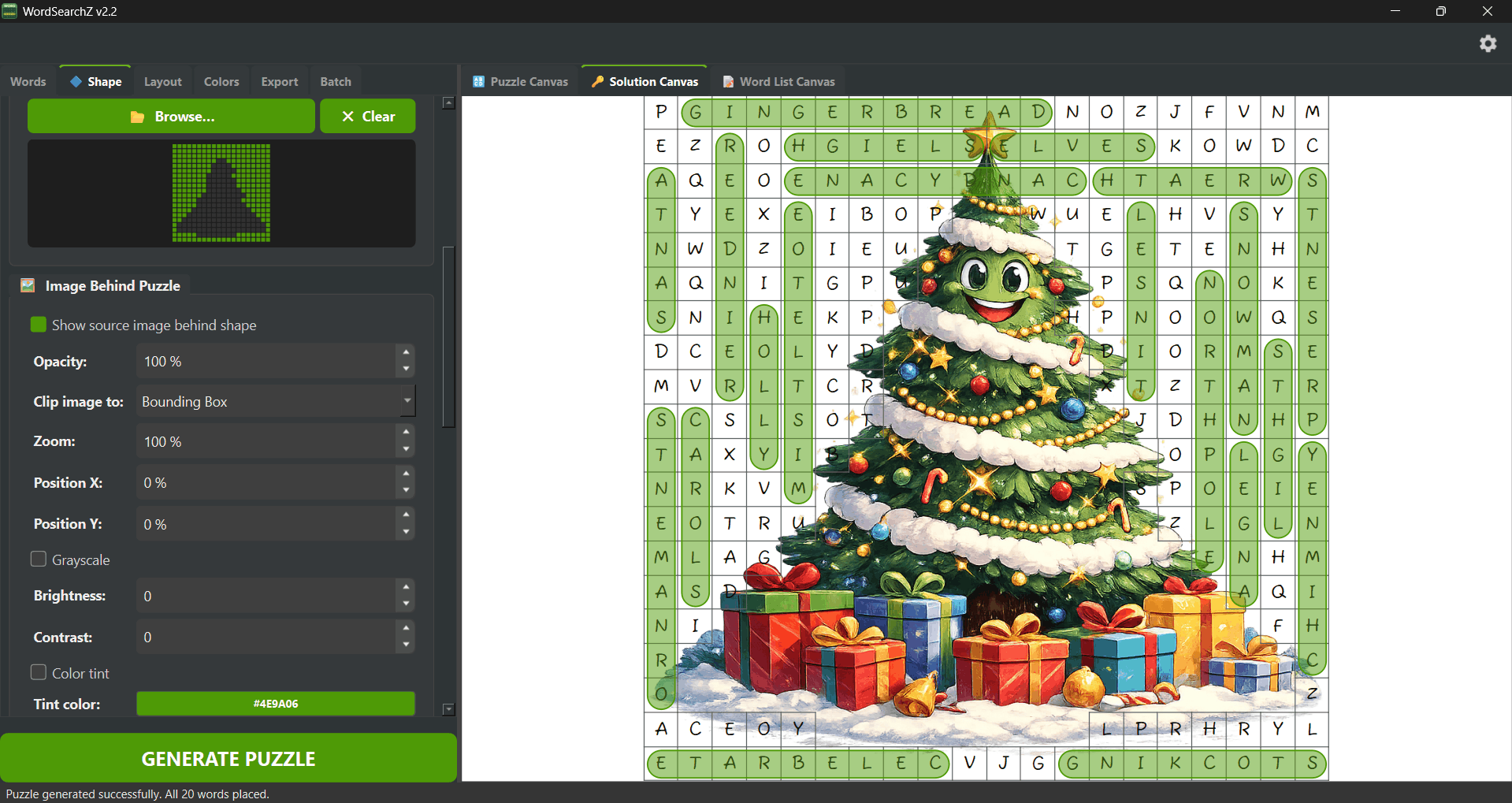
Interface Preview: Shape Puzzles Tab
Grid Lines in Shape Mode
When Show Grid Lines is enabled and a shape is active, the grid line renderer is shape-aware. Lines are drawn only along the edges of active cells — producing a clean outline of the shape boundary and internal cell grid, with no lines extending into the blank inactive areas.
Capsule Fill & Transparency
Shape puzzles pair beautifully with the updated Rounded Solution style in the Export tab. Two new controls were added in v2.0:
Fill Capsule
Toggles a solid colour fill inside each rounded capsule highlight. When off, only the border stroke is drawn.
Fill Opacity (%)
Controls the fill transparency from 0% (invisible) to 100% (fully solid). Default is 50% — the classic highlighter-pen look that lets letters show through.
Publishing Use Cases
Holiday Books
Heart shapes for Valentine's Day, stars for Christmas, pumpkins via custom image upload for Halloween.
Educational Worksheets
Letter-shaped puzzles (upload an "A" or "B" silhouette) for alphabet-learning workbooks and activity sheets.
Niche KDP Markets
Upload brand logos, animal silhouettes, sports icons, or state outlines to create unique, themed puzzle books that stand out on Amazon.
3. Layout Tab
Grid Settings
- • Grid Size: Supports 6×6 to 60×60 matrices. Enable Link X & Y to keep grids perfectly square.
- • Letter Size (%): Sets how much of each cell the letters fill (45–100%). It's scale-independent, so letters stay proportional when you resize the puzzle in your layout — turn it up for large-print / senior editions.
- • Puzzle Box: Toggleable heavy outer border with adjustable line thickness and interior padding.
Print Sizing New
- • Preset: One-click common book sizes (8.5×11, 6×9, 7×10, 8×10, 5.5×8.5, 5×8, A4) — or Custom for websites and other formats.
- • Print area (in): The printable width × height on your page. This drives the true printed point size and makes exports come out at that exact physical size.
- • Printed point size: A live read-out of the real point size your letters will be at for the current print area (it shows something like ≈ 24 pt). See Print Area & Point Size.
- • Grid Lines: Overlay vertical/horizontal lines for a classic workbook look.
Pro Tip: Puzzle and Word Layout
When designing for KDP, export your Puzzle Canvas and Word List Canvas separately as SVGs. This allows you to scale them independently in your publishing software without any loss in print quality. If your puzzles look unreadable, adjust the settings normally the font or grid size.
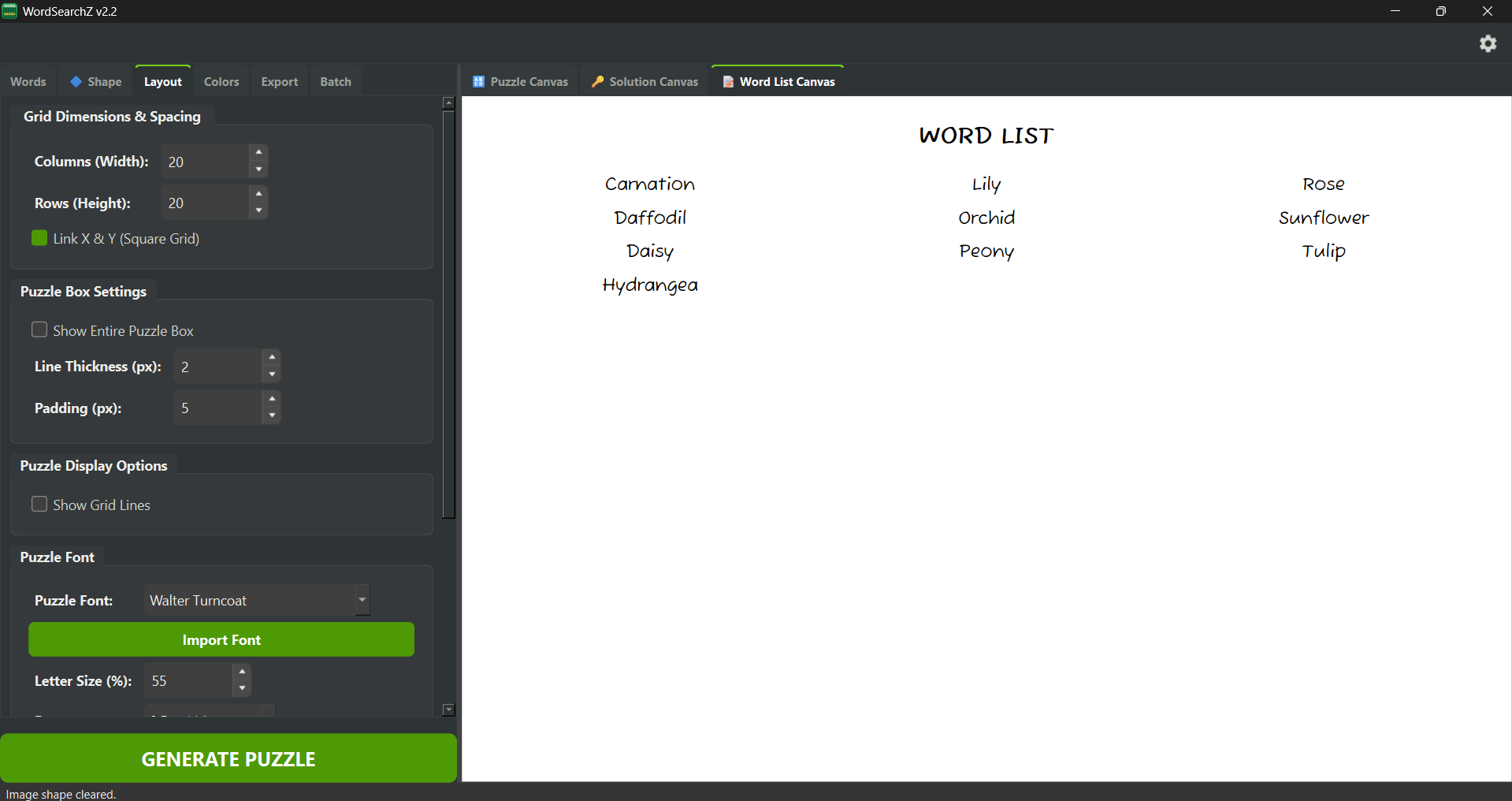
Interface Preview: Puzzle Layout Canvas
Word List Styling
These controls now live inside the Words tab and shape your word bank on the dedicated 📝 Word List Canvas.
Title & Alignment
- • Custom Title: Toggle and edit the word list title (e.g., "WORD LIST").
- • Columns: Responsive layout supporting 1 up to 15 columns.
- • Alignment: Independent Left, Center, or Right text justification for both the title and the word bank.
Styling & Dividers
- • Column Dividers: Add vertical divider lines between columns with adjustable thickness.
- • Typography & Spacing: Independent font selection, sizing, and vertical line spacing control (in pixels).
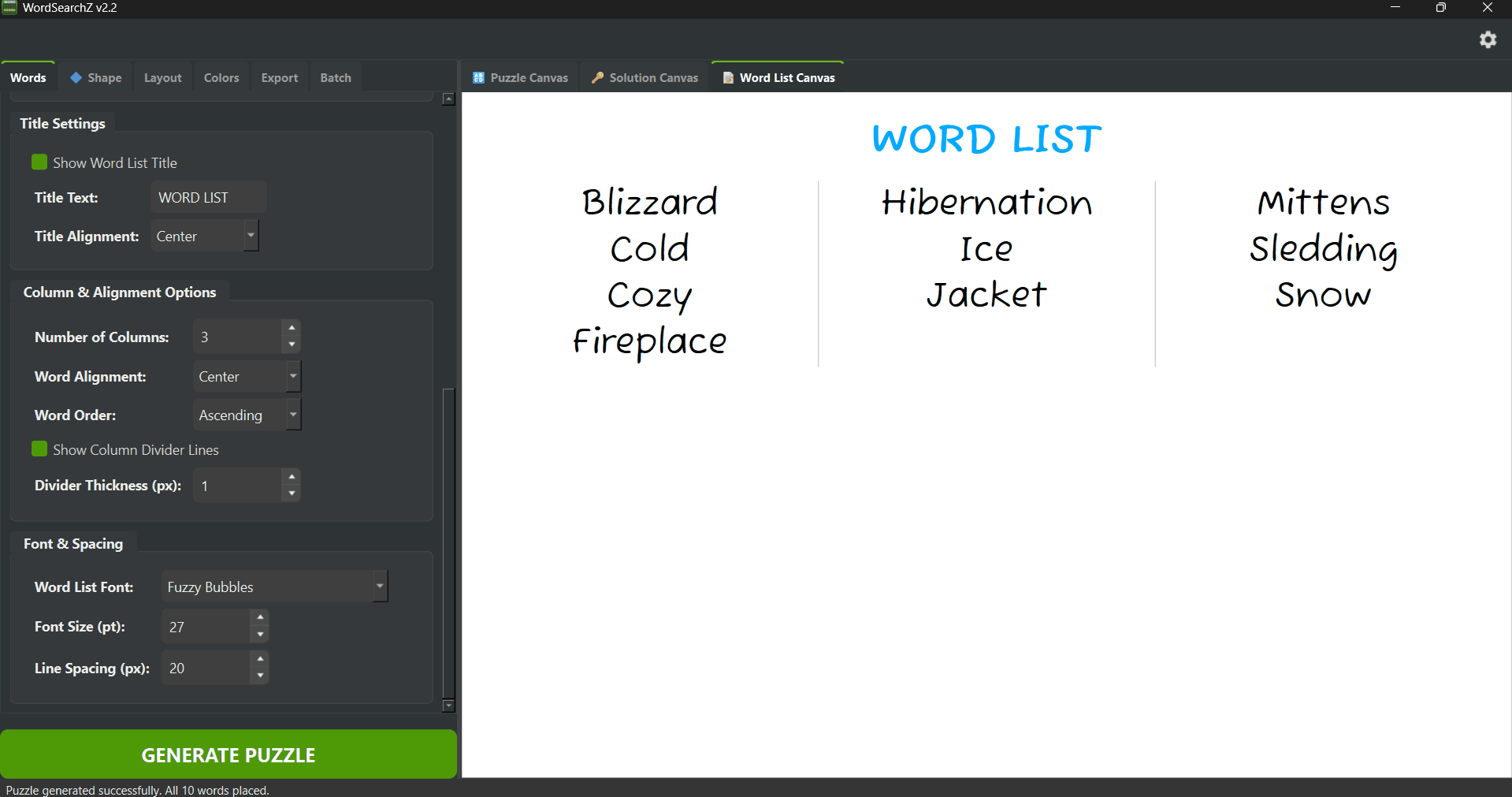
Interface Preview: Word List Styling
4. Colors Tab
The integrated color engine allows you to define custom hex values for every visual component independently.
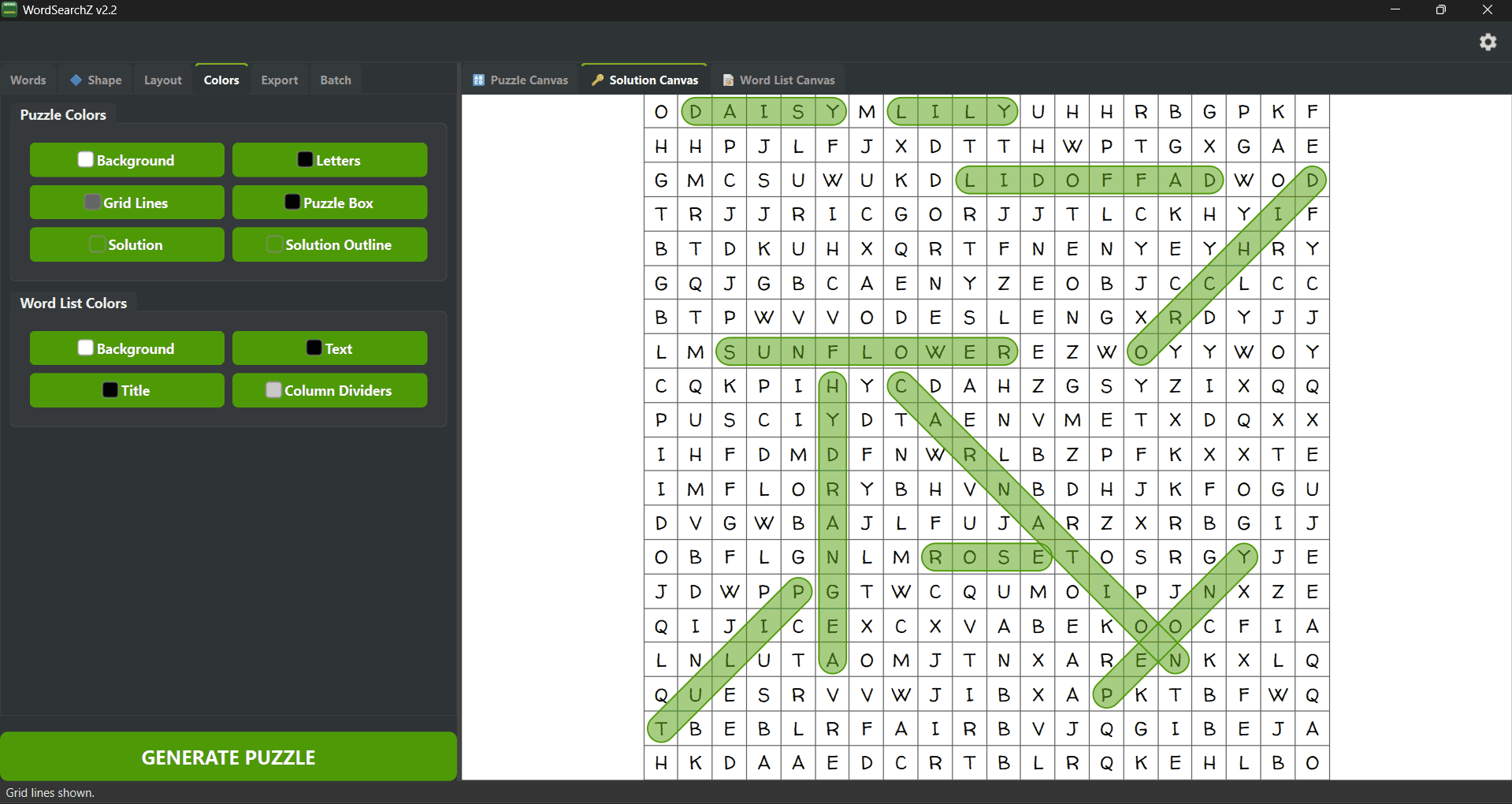
Interface Preview: Colors Tab
5. Export Options
Pick What to Export
Choose what to save — Puzzle, Answer key (the solution), and/or the Word List. A single export writes every selected item at once (the answer key is saved as a matching …_Solution file), no matter which canvas tab is active.
High-Res, Print-Accurate Formats
Save as PNG (transparent-background toggle & selectable DPI), SVG (infinite vector scaling), or PDF (print-ready).
Every file is written at the exact Print area size — drop it into your book at 100% with no rescaling.
Solution Key Style
Mark answers three ways — the choice flows into the Solution canvas and the exported answer key:
- • Line — a stroke through each word.
- • Rounded — a soft capsule around each word.
- • Box New — a rectangle around each word.
Fill Capsule & Fill Opacity (%) tune the highlighter look for the Rounded and Box styles.
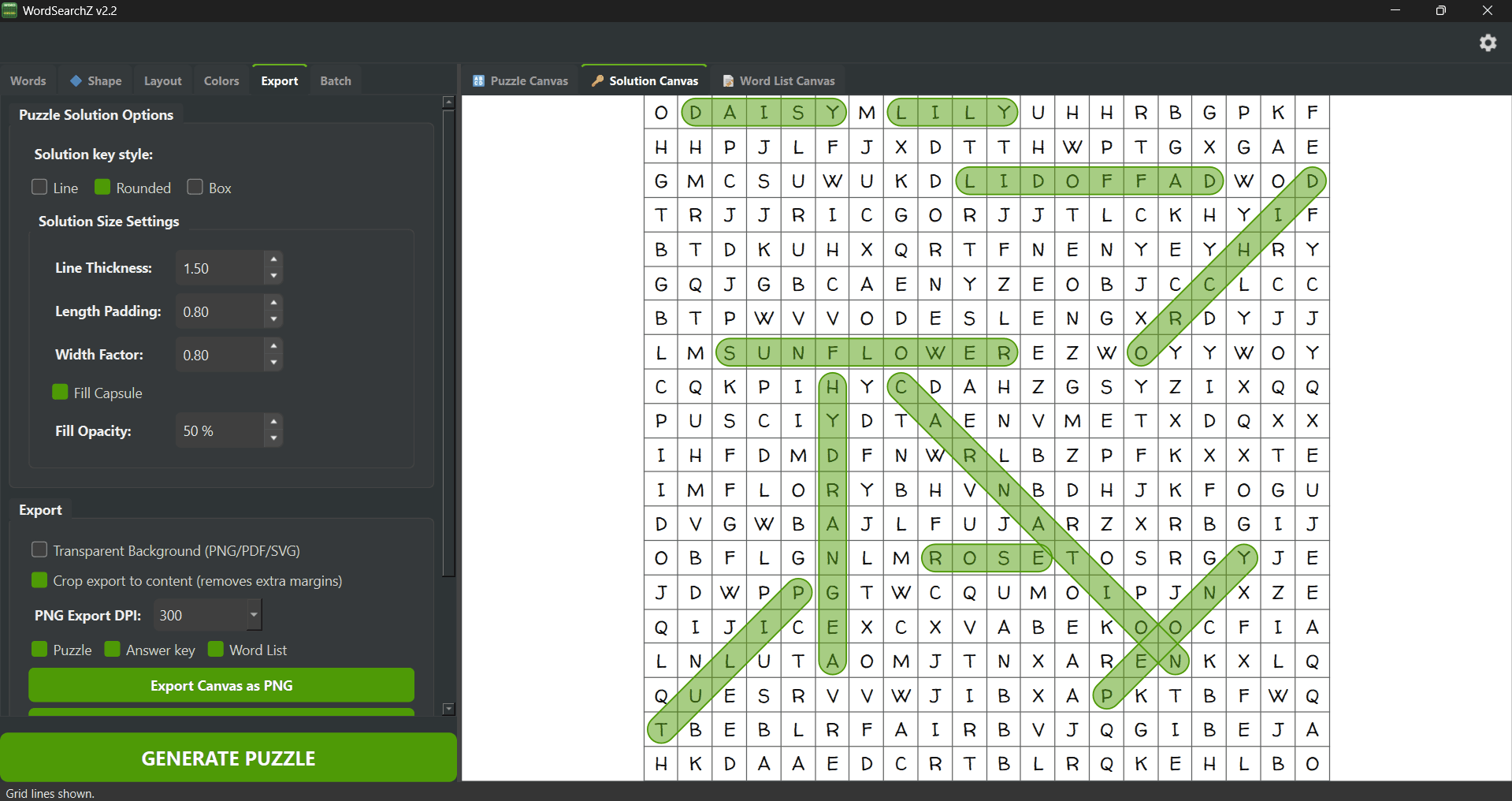
Interface Preview: Export Tab
6. Batch Export
Streamline high-volume production by processing up to 100 .csv or .txt or files at once. The batch module utilizes automated sequencing and customizable file prefixes.
Independent Canvas Generation
The batch exporter produces up to three distinct files per puzzle: the Puzzle, the Word List, and the Solution (answer key), all separated and ready for drag-and-drop book formatting.
Batch Solution Style
The Batch tab has its own Solution Style selector — Line, Rounded, or Box — applied to every …_Solution file in the run. Set it here (it's separate from the single-export style) before you start.
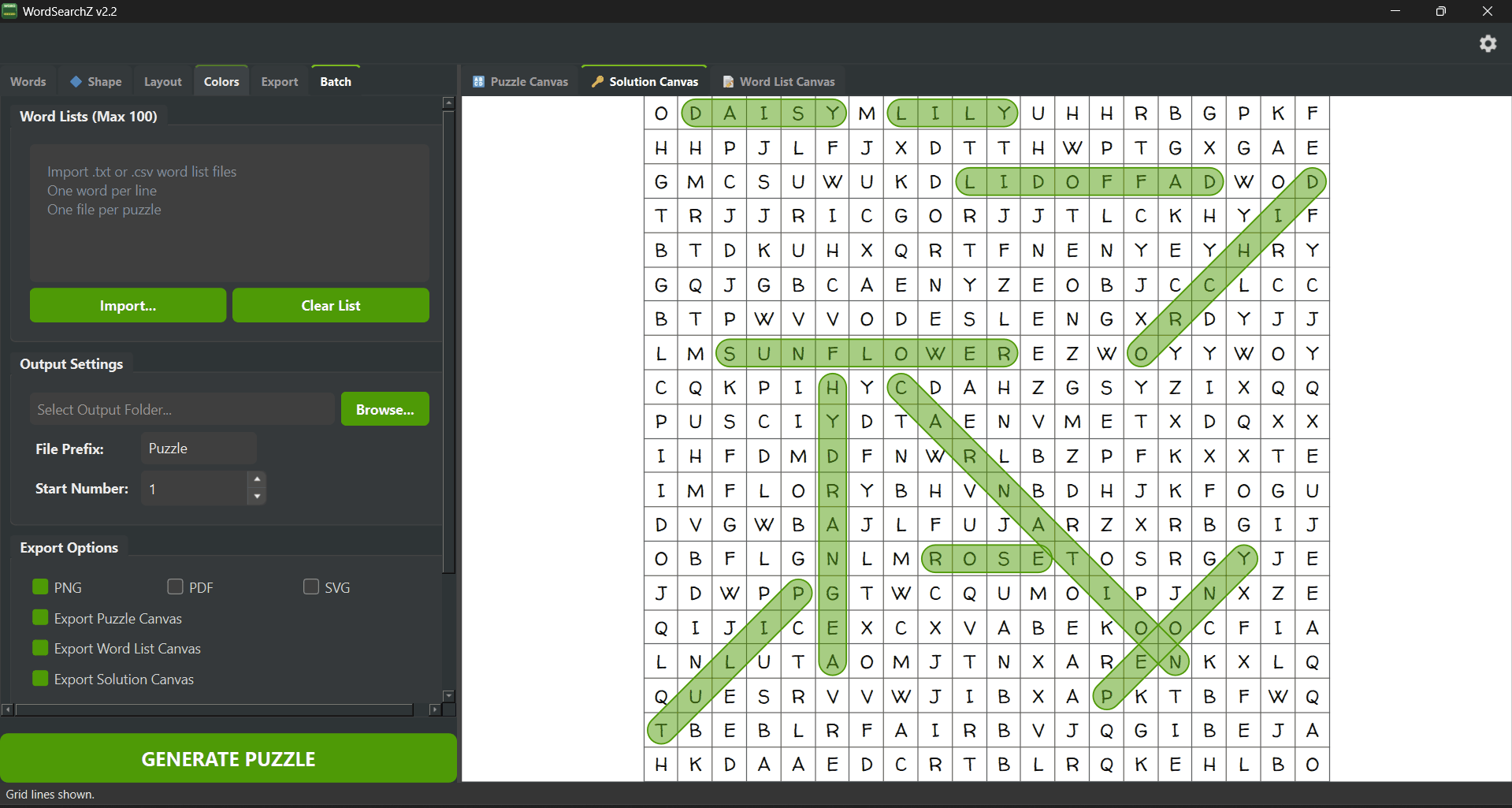
Interface Preview: Batch Tab
Print Area & True Point Size New
A puzzle is scaled to fit your page when you place it, so the size that actually prints is set by three things working together: your grid size, the Letter Size (%), and the print width of the puzzle on the page. WordSearchZ ties all three together so you always know the real printed point size.
Set it once
Pick a book size from the Preset dropdown in the Layout tab (or type a Custom Print area). The live printed point-size read-out under Letter Size updates as you change the grid or the fill, showing the exact size your letters will print at.
Drop in at 100%
PNG, PDF, and SVG all export at exactly that physical size — place them in your book at 100% and the point size you saw is the point size you get. No shrinking, no guesswork.
Large-print tip: more cells means smaller letters on the same page. A 30×30 grid on 8.5×11 tops out around 17 pt even at 100% fill, while a 10×10 grid reaches roughly 50 pt. For senior / large-print editions, use a smaller grid and watch the read-out climb.
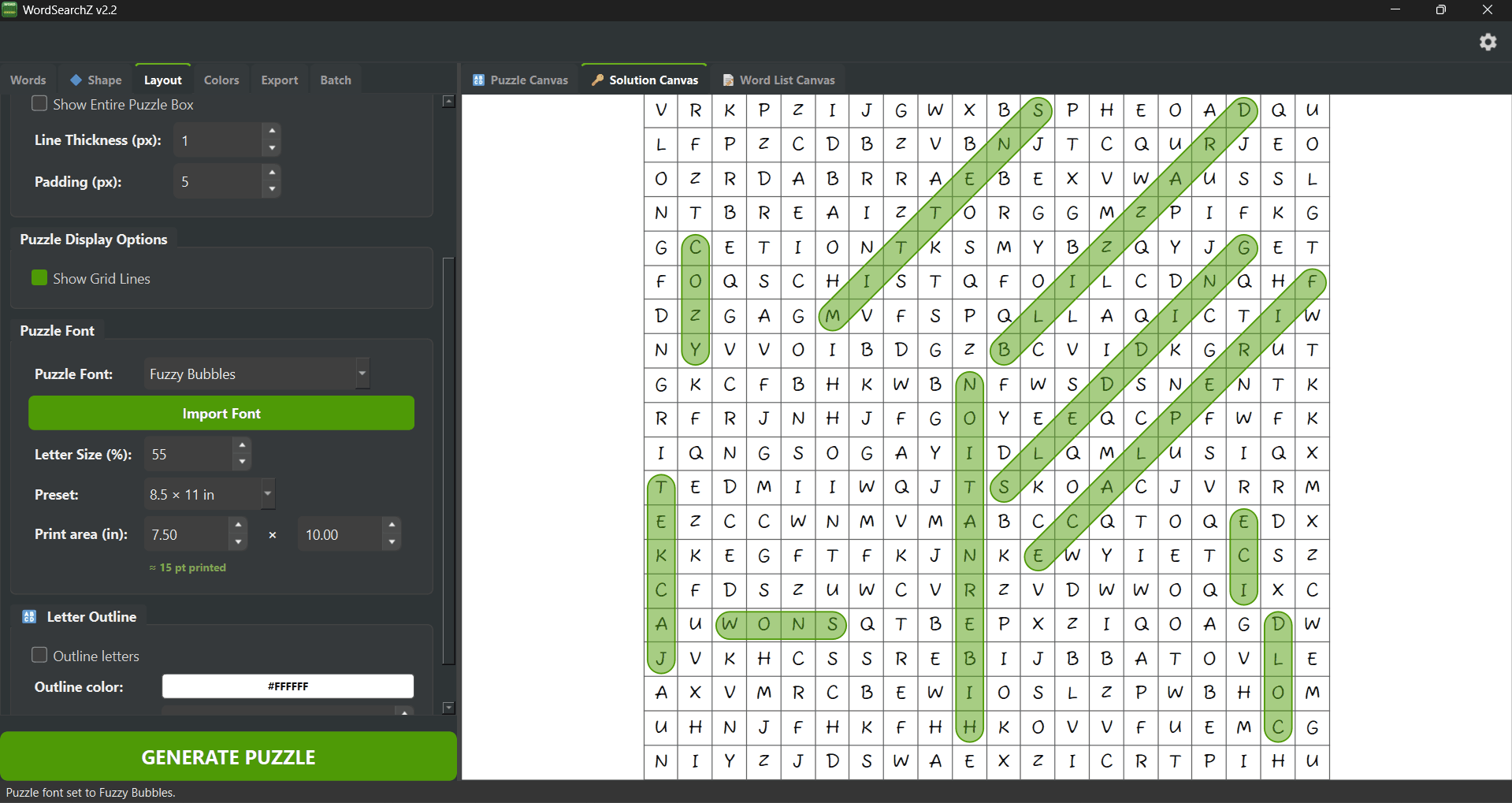
Interface Preview: Print Area & Point Size
Coordinate Export New
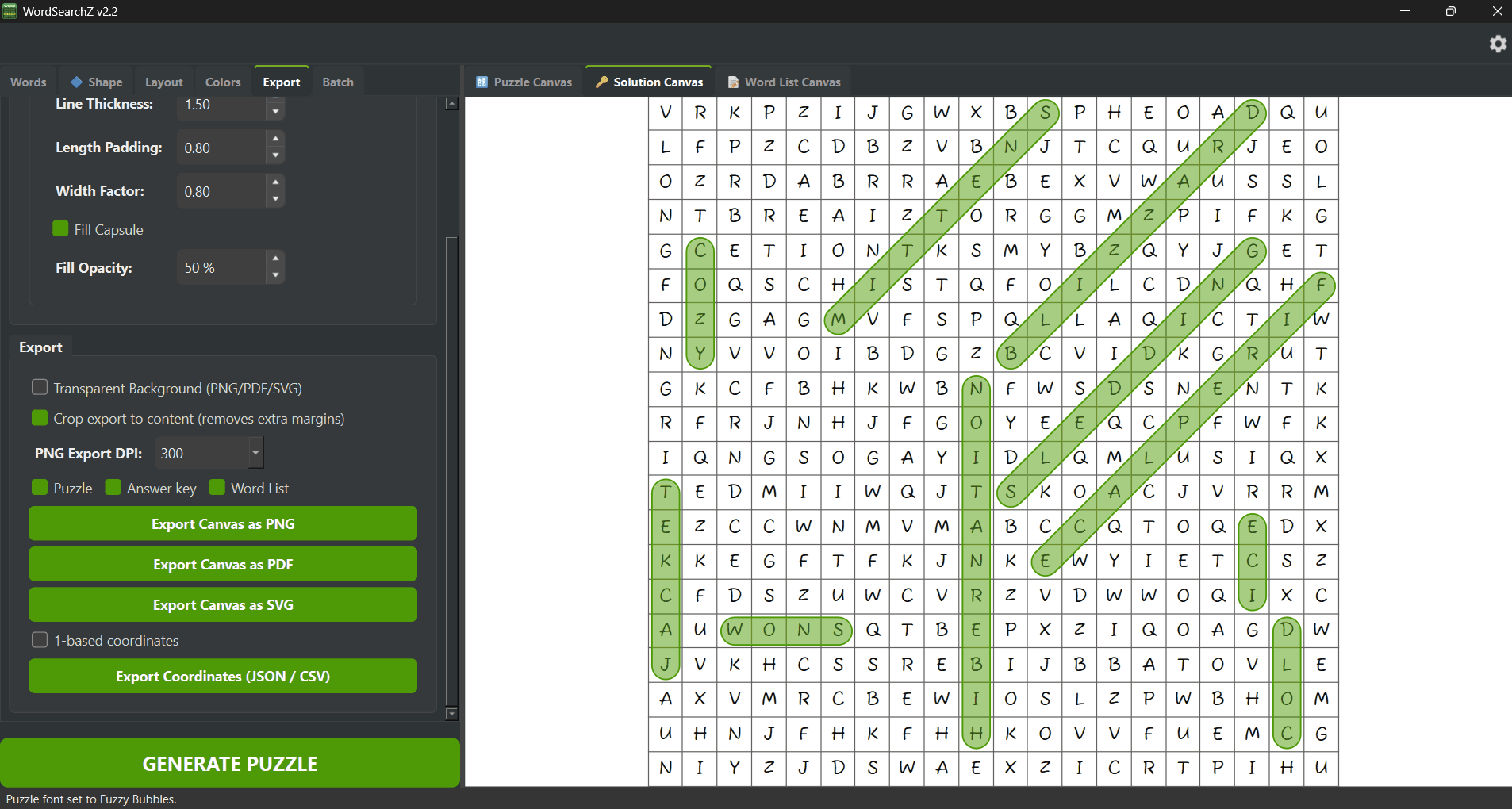
From the Export tab, save the exact placement of every answer as data with Export Coordinates (JSON / CSV) — ideal for building interactive or digital puzzles, auto-verifying answers, or feeding another tool.
What's included
- • Grid dimensions and the full letter matrix
- • Each word's start & end cell, compass direction, and the exact list of cells it occupies
- • Your choice of JSON (structured) or CSV (spreadsheet-friendly)
0- or 1-based
1-based coordinates so the top-left cell is row 1, column 1 (spreadsheet style). Leave it off for 0-based indexing — the programmer default.
Interface Preview: Coordinate Export
Settings & Updates New
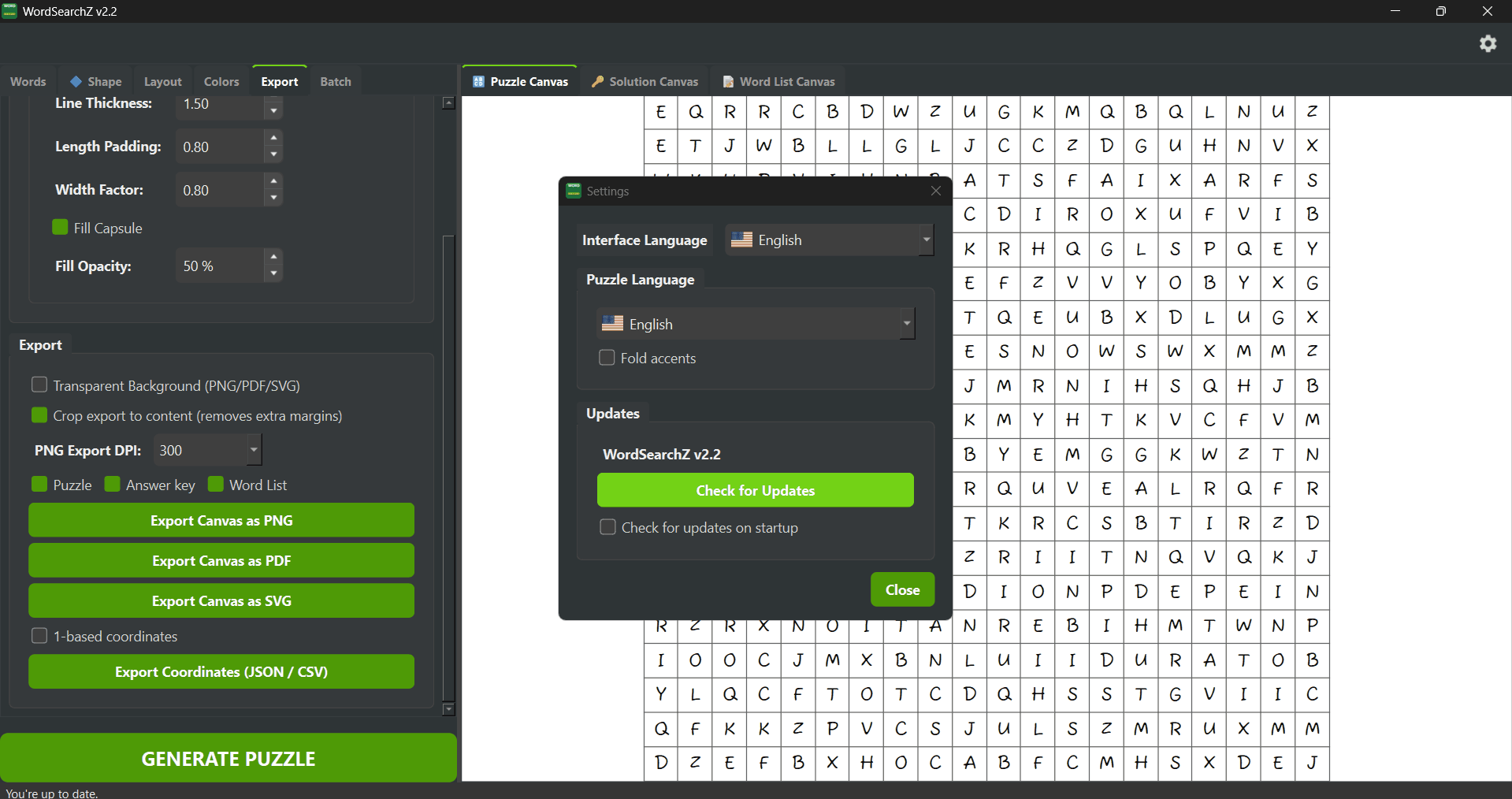
Open Settings (the gear icon, top-right) for the Interface and Puzzle language pickers and the Updates section. Click Check for Updates to securely see whether a newer version is available.
Secure & private
- • Checks over HTTPS with certificate validation
- • Runs in the background — it never freezes the app
- • Downloads nothing on its own; if an update exists, a Download button opens the page in your browser
On your terms
The startup check is off by default for privacy — Check for updates on startup if you'd like the app to look automatically each time it opens.
Interface Preview: Settings & Updates
Commercial Rights & Usage
Full Ownership & Commercial Clearance
Every WordSearchZ Lifetime License includes an unrestricted commercial use authorization
Permitted Usage
Policy Highlights
- • No required royalties or recurring monthly fees.
- • No limits on the number of books or puzzles produced.
- • Lifetime license for all generated content.
Ready to Start?
Claim your lifetime license and quick-start your publishing business.
PURCHASE NOW100% Secure Checkout